JD TITAN Login Problems: Can't Sign In or Forgot Password Fix
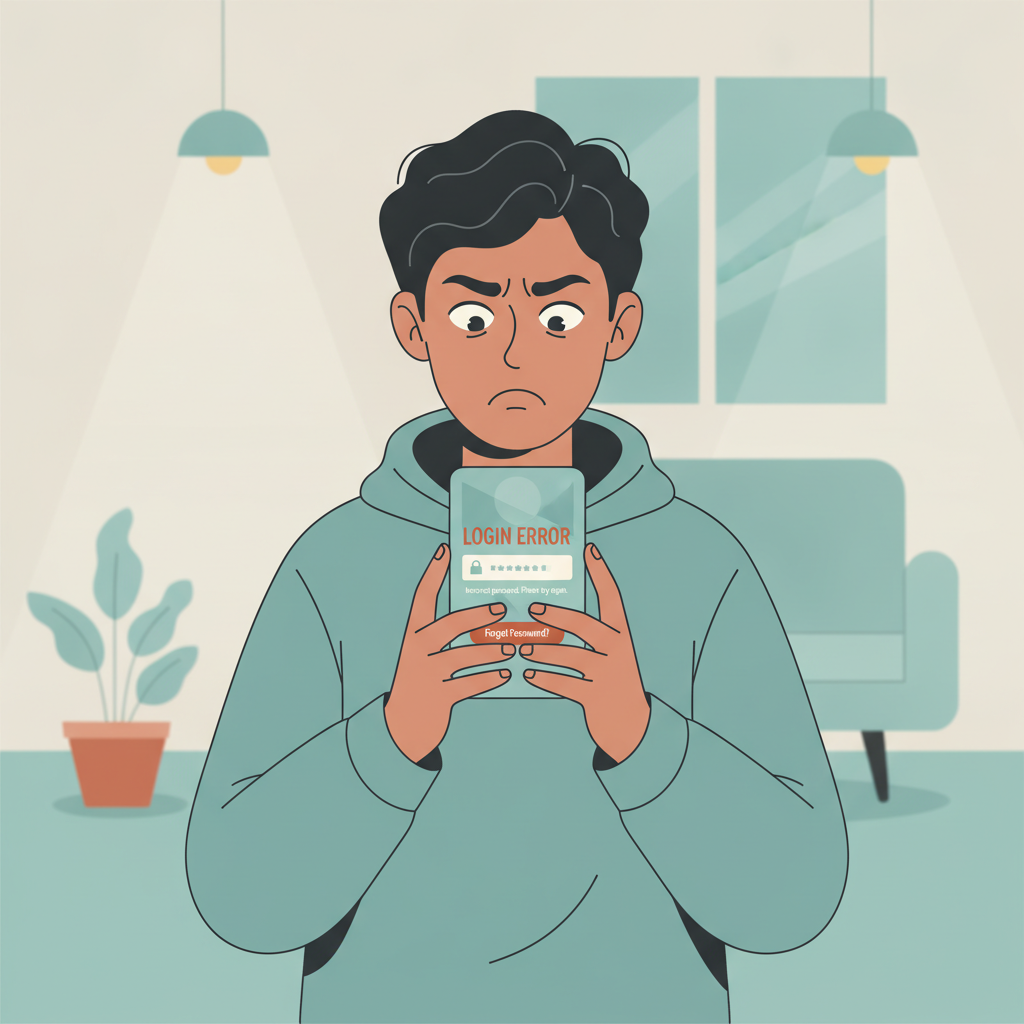
Common Reasons You Can't Log In to JD TITAN
When you try to open JD TITAN on your phone and can't get past the login screen, a handful of issues usually explain why. Knowing which one you're facing saves time and frustration.
Wrong password or username is the most frequent cause. If you typed your credentials incorrectly—even one character off—the platform will reject the attempt. Double-check that caps lock is off, especially on Android keyboards that auto-capitalize, and make sure you're using the mobile number or email you registered with.
Account locked after multiple failed attempts triggers automatically when JD TITAN's system detects several wrong password entries in a row. This security measure protects your balance and personal data. The lock usually lifts after 15 to 30 minutes, though in some cases you'll need to reset your password or contact support.
Poor internet connection can prevent the login request from reaching JD TITAN's servers. If you're on mobile data in a weak-signal area or connected to slow Wi-Fi, the app may time out before verifying your credentials. Test by opening a browser and loading any website; if that's slow or fails, switch networks or move closer to your router.
Outdated app version sometimes blocks access if JD TITAN has pushed a mandatory update. Android users who installed the APK from the official site need to manually download the latest version when prompted, since Google Play doesn't auto-update sideloaded apps.
Account suspended or under verification appears less often but requires different steps. You'll see a specific message on screen rather than a generic "login failed" alert.
How to Reset Your JD TITAN Password on Mobile
If you've forgotten your password or suspect you're entering the wrong one, resetting it is straightforward on both Android and iOS.
Step 1: Open the JD TITAN app or visit the mobile site in your browser.
Step 2: On the login screen, tap Forgot Password or Reset Password. The link is usually below the password field in small text.
Step 3: Enter the mobile number or email address you used during registration. Make sure it matches your account records exactly—if you registered with a Globe number, don't enter your Smart number by mistake.
Step 4: Tap Send Code or Submit. JD TITAN will text an SMS verification code to your phone or email a reset link, depending on the contact method you chose.
Step 5: Check your messages within a few minutes. SMS codes typically arrive in under a minute; email can take up to five minutes. If nothing appears, check your spam folder or request a new code.
Step 6: Enter the verification code in the app, or tap the link in the email. You'll be taken to a screen where you can type a new password.
Step 7: Create a strong password—at least eight characters, mixing letters and numbers. Avoid obvious choices like "12345678" or your birthdate.
Step 8: Confirm the new password and tap Save or Update. The app should log you in automatically, or prompt you to sign in with the new credentials.
If the reset code never arrives, confirm that your registered mobile number or email is still active. If you've changed SIM cards or let an email account lapse, you'll need to contact JD TITAN support through live chat or their official Facebook page to verify your identity and update your contact details.
What to Do If You See 'Account Suspended' or 'Verification Required'
Account suspended messages indicate JD TITAN has temporarily or permanently restricted access. Common triggers include multiple accounts under one name, suspicious betting patterns, or a failed identity check. The message may include a reference number or instructions to contact support.
Your first action is to reach out to JD TITAN's customer service. Use the live chat feature in the app if you can still access it, or visit the official website on a desktop or another device. Explain that your account is suspended and provide your registered mobile number and username. Support will ask for identity documents—a valid government ID such as a driver's license, passport, or UMID—and possibly a selfie holding the ID.
Processing can take one to three business days. Avoid creating a new account while waiting; duplicate accounts often result in both being permanently banned and any balance forfeited.
Verification required appears when JD TITAN needs additional documents before allowing deposits, withdrawals, or continued play. This is standard for online casinos operating in the Philippines, especially after your first withdrawal request or when the platform detects a change in device or location.
To complete verification:
- Log in if you can access your account, or follow the link in any email JD TITAN sent.
- Navigate to Account Settings > Verification or KYC.
- Upload a clear photo of a government-issued ID. The image must show all four corners, with text readable and no glare.
- Upload a selfie holding the same ID next to your face, as instructed.
- In some cases, JD TITAN requests proof of address—a utility bill or bank statement dated within the last three months showing your name and address.
Submit the documents and wait for email confirmation. Approval typically happens within 24 to 48 hours. Until verification clears, you may be locked out of login or restricted to view-only mode.
Tips for Remembering Login Details and Enabling Biometric Login on the App
Forgetting your password every few weeks wastes time and risks missing out on time-limited bets or jackpot slots. A few practical steps keep you logged in smoothly.
Use a password manager on your Android or iOS device. Apps like Google Password Manager (built into Chrome and Android) or Apple Keychain securely store your JD TITAN credentials and auto-fill them when you open the app. You unlock the manager with your phone's PIN or fingerprint, so you never type the password manually.
Write down your login details offline if you prefer not to trust cloud services. Keep a small notebook at home with your JD TITAN username and password—never store this in a photo on your phone or in a Notes app, since those can be accessed if your device is lost.
Enable biometric login in the JD TITAN app. Many casino apps, including JD TITAN's Android APK, support fingerprint or face unlock once you've signed in successfully. To activate:
- Open the JD TITAN app and log in with your username and password.
- Go to Settings or Account (usually a gear icon or profile menu).
- Find Security or Login Options.
- Toggle on Fingerprint Login or Face ID, depending on your device.
- Follow the prompts to scan your fingerprint or face.
From the next session onward, you can skip typing credentials—just tap the fingerprint sensor or glance at the camera. This feature only works on the device where you enabled it, so you'll still need your password if you switch phones or reinstall the app.
Stay logged in on a secure device. If you're the only person using your phone and it's protected by a strong lock screen, you can leave the JD TITAN app logged in. Just make sure to log out if you ever lend your phone to someone or connect to public Wi-Fi in a coffee shop.
Update your password periodically. Even if you haven't forgotten it, changing your JD TITAN password every six months reduces the risk of unauthorized access, especially if you reuse passwords across multiple sites.
Connection and App Troubleshooting for Login Failures
When your password is correct but you still can't sign in, network or software issues are often to blame.
Switch between mobile data and Wi-Fi. If you're on a congested Smart or Globe tower, data speeds drop and the app may time out. Toggle airplane mode on and off to force a reconnect, or switch to Wi-Fi. Conversely, if your home Wi-Fi is unstable, try mobile data.
Clear the app cache on Android. Go to Settings > Apps > JD TITAN > Storage > Clear Cache. This removes temporary files that can corrupt login sessions. Your saved username and password in the app may be erased, so have them ready to re-enter.
Reinstall the JD TITAN APK or iOS app. Uninstall the current version, download the latest APK from the official JD TITAN website (never from third-party sites), and install it fresh. On iOS, delete the app from your home screen and re-download from the link provided by JD TITAN, since it's not available in the App Store for Philippine users as a direct listing in many cases.
Check for system updates. Older Android versions (below 8.0) or iOS versions (below 12) sometimes clash with modern casino apps. Go to Settings > System > Software Update and install any pending updates.
Disable VPN or proxy. JD TITAN may block logins from IP addresses flagged as VPN servers, since this can indicate account sharing or geo-restriction bypass. Turn off any VPN app running in the background and try again.
If none of these steps work, screenshot the exact error message and send it to JD TITAN support. Include your username and the device model (for example, "Samsung Galaxy A54" or "iPhone 13"). Support can check server logs to see if there's an issue on their end.
21+ Only and Responsible Gambling Reminder
JD TITAN is strictly for players aged 21 and over. Online casino and sports betting carry financial risk—never wager money you can't afford to lose. If you find yourself logging in compulsively, chasing losses, or hiding your betting activity from family, reach out to a support service such as the National Center for Mental Health crisis line or Gambling Therapy Philippines. Set deposit limits in your account settings and take breaks when gaming stops being fun.